What the Verify Button Checks
Learn what Denshin reads when you press Verify, how to understand an unfinished task and what to check before repeating an on-chain action.
You have followed a quest's instructions and returned to the city. The next step is a small button: Verify. Before pressing it, it helps to know which question you are asking the game to answer.
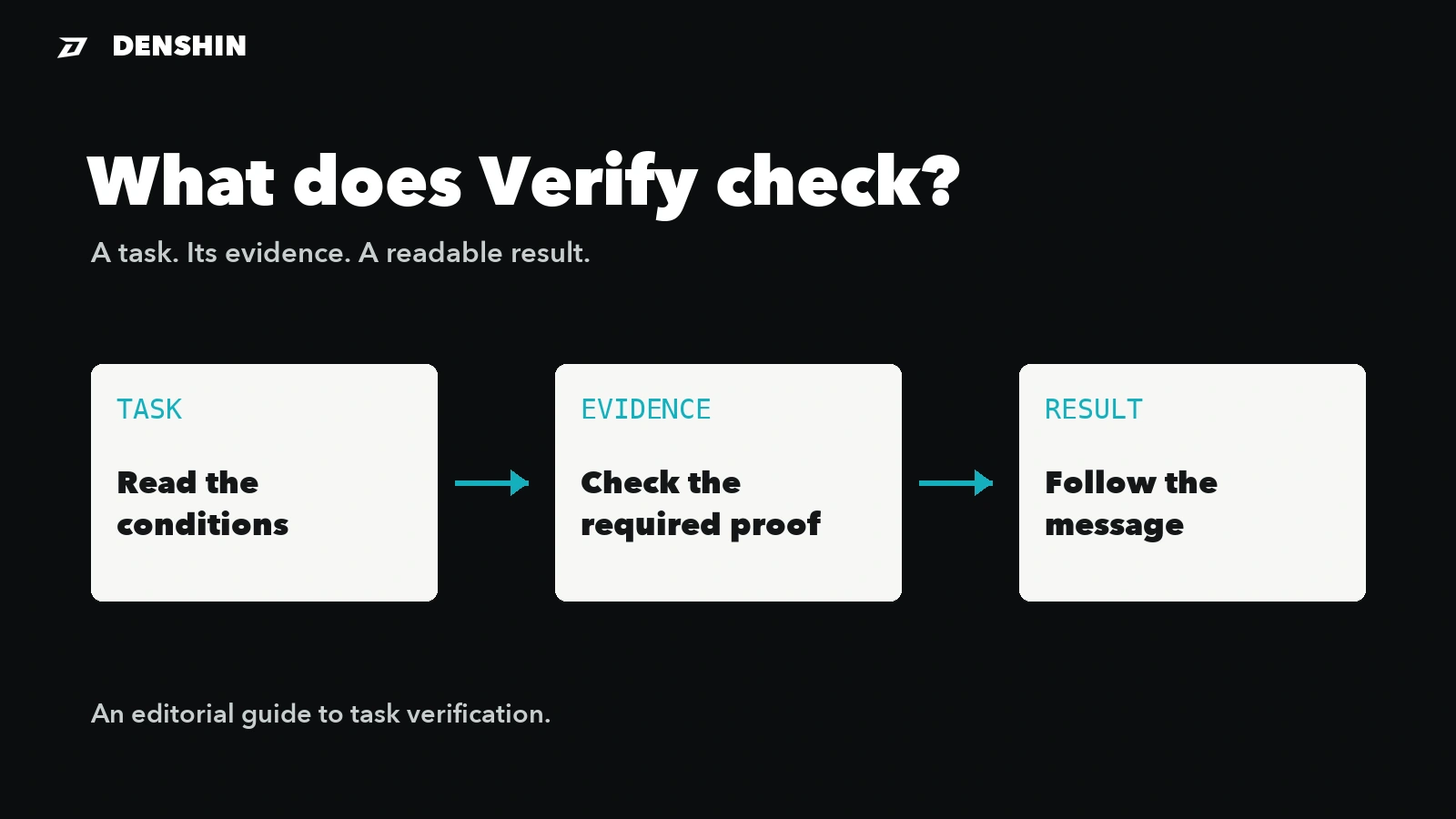
We use verification to compare the evidence available for your profile with the conditions of a particular task. The useful question is specific: does this wallet hold the required asset, did the requested action happen on the right network, or is the required account linked? Reading that question makes the result easier to understand.
This guide follows a task from its instructions to its check. You can use the same reading habit when a task passes immediately and when it needs another look.
Begin with the task you are checking#
A quest can contain several tasks. Open the one you are about to verify and read its instructions all the way through. Look for the network, the asset or action, and any stated amount or timing condition. Keep those details beside you while you complete the step.
For an on-chain action, follow the quest's Start mission step before acting. Denshin uses the start point when looking for activity that belongs to that mission. A successful transaction in your older wallet history can still fall outside the period the task checks.
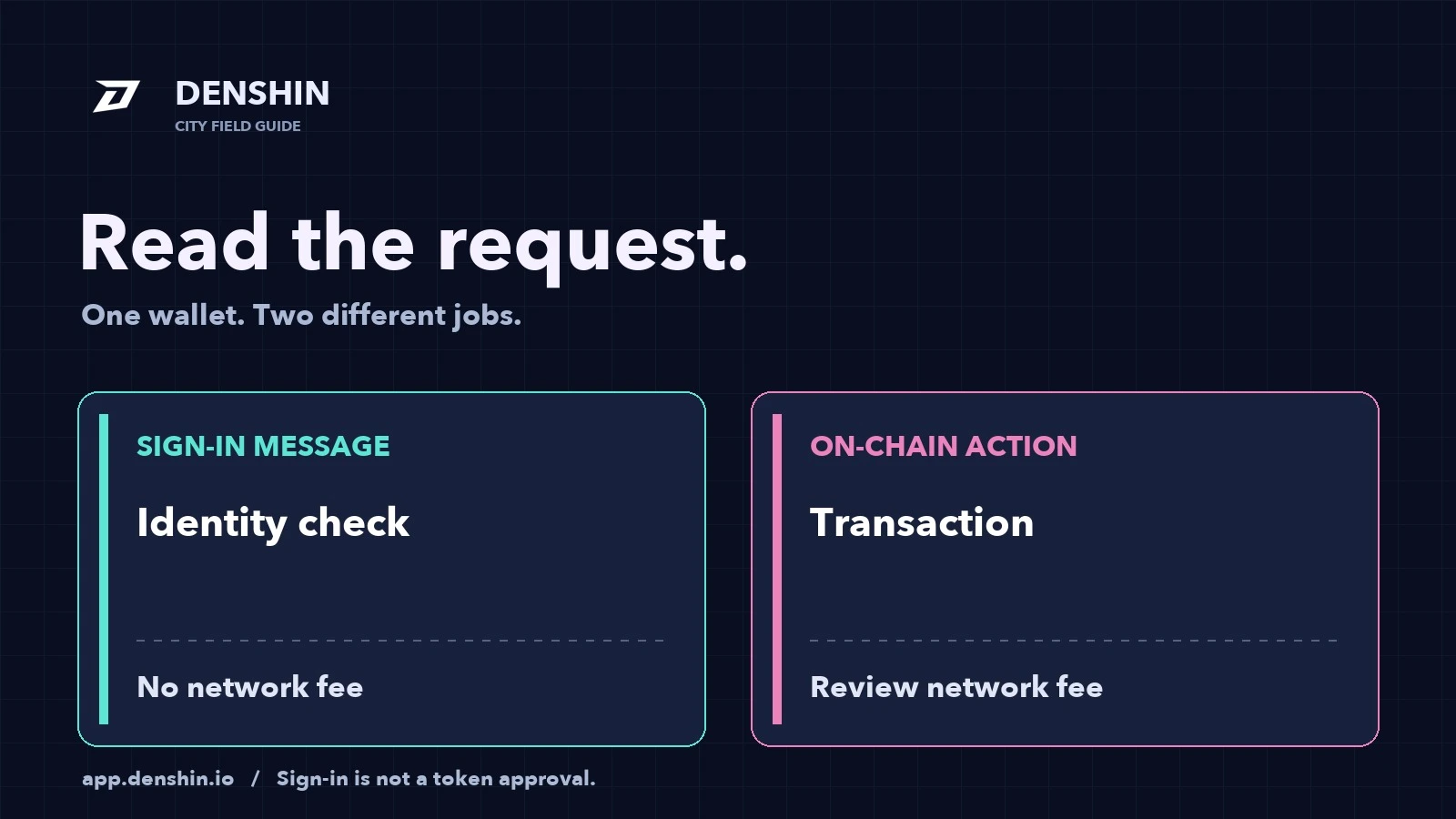
The amount written in a task also deserves its own reading. An amount requirement describes a condition of the task. Gas is the network fee for a transaction. Review the wallet's requested action and fee estimate before confirming a transaction; the amount requirement does not tell you the complete fee for sending it.
Check the wallet behind the task#
Signing in gives you access to your personal progress. For ordinary on-chain quest checks, the address that matters is your main wallet. Having several wallets linked to a profile does not combine all their balances or activity into one answer.
Before acting, compare the wallet you are using with the main wallet shown in Denshin. If you changed your main wallet after starting a mission, follow the instructions for starting it again with that address. This matters especially when an action was completed from a different wallet than the one the mission expects.
Wallet roles are explained in our wallet handbook. It is worth checking that relationship before making another transaction just because a task remains unfinished.
Understand the kind of evidence#
The wording of a task tells you what evidence should exist. A holding check asks about the wallet's current state. An action check asks whether the required activity occurred within the conditions of that mission. A linked-account task asks about the relevant connection to your profile.
Those questions lead to different preparations. For a holding task, review the asset, amount and network. For an action task, review the mission's start point and the action you actually completed. For an account task, check that the intended account is linked to the profile you are using.
Treat each instruction as a description of the evidence the check needs. A transfer, a mint and a swap are different actions. Completing one does not automatically satisfy a task that asks for another. The verification handbook explains these distinctions in more detail.
Press Verify and read the answer#
When the requested step is ready, return to its task and press Verify. Denshin reads the applicable evidence and reports whether the conditions were met. The button itself does not carry out a trade or mint an asset for you.
Give the result a moment to arrive, then read the message against the task you opened. A successful result applies to that task. If the quest contains other required tasks, inspect those separately rather than assuming that one check has completed the whole mission.
An unfinished result can be useful information. It may point to an amount, a wallet, a network or a missing connection. Keep the exact message in view while you compare it with the instructions. That gives you a concrete place to look next.
Give a recent action time to appear#
A transaction can be visible in a wallet before all the information used by a task check has caught up. If you have just completed the action, review its confirmation first and allow the check's waiting period to finish before trying again.
When the quest shows a countdown, wait for it to clear. Repeated clicks during that period do not make the transaction arrive sooner. Use the pause to compare the mission's network and wallet with the action you completed.
Running the check again costs no gas. Sending a new on-chain action is a separate decision with its own wallet confirmation and possible network fee. An unfinished check is a reason to read the result before deciding whether another action is needed.
Follow the result through the quest#
For ordinary tasks, verified progress can add points as individual tasks pass. The quest completes when its required work is finished. Team quests have their own completion and reward rules, so read the conditions shown for the particular mission you joined.
Accepted on-chain proof is counted once. Pressing Verify again or returning to a completed task does not turn that same action into another reward. This is another reason to use the task's current state as your starting point when deciding what to do next.
We want the check to leave you with a readable next step: continue with an unfinished task, wait for recent evidence, or return to the map when the mission is complete. Open the Denshin app, choose one task and follow its instructions through to its result. A careful check begins with knowing what you asked it to read.